Log Generator: Realistic 3D-Printable Logs for Your Model Railroad
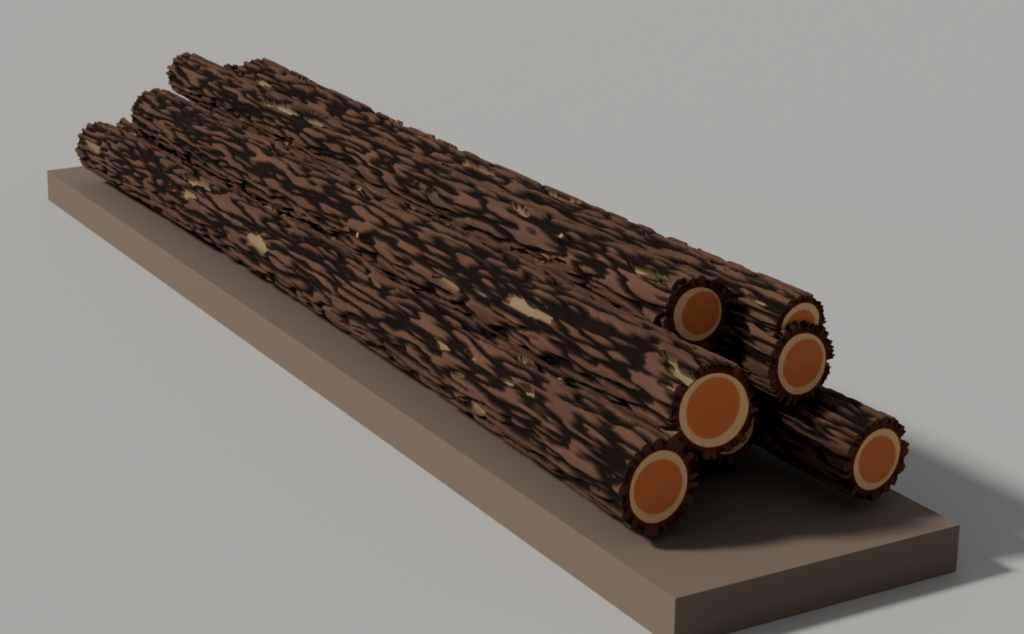
An HO scale car load of ten Douglas fir logs, made in one click.
Logs are everywhere on a logging or sawmill layout: piled on skeleton cars, stacked on the mill deck, waiting on the carriage, and floating in the pond. They’re also tedious to model by hand, and a load of identical logs looks wrong right away. Log Generator is a Blender add-on I wrote to fix that. It builds 3D-printable logs at any model railroad scale. Every log has realistic bark for its species, a natural taper, trimmed limbs, sawn ends with growth rings, and enough random variation that no two logs look the same.
What the Generator Does
You pick a species, a scale and a size, and press Generate. The add-on builds each log as a closed, watertight mesh in millimetres, ready to export as STL for a resin or FDM printer. Here’s what it can do:
- 20 North American species, from Douglas fir, ponderosa pine and redwood to red oak, shagbark hickory and paper birch. Each has its own bark pattern, colours, heartwood and sapwood, taper and flare.
- Every common scale from T (1:450) through N, HO, S, O, On30, G and Fn3 up to 1.5 in scale (1:8), plus a custom ratio.
- Real-world or model sizes. Enter the real log’s length and diameter (feet/inches or metres/cm) and let the scale do the maths, or type in the model’s size directly.
- Realistic details: species bark, taper from butt to top, optional flared butt logs, sawn-off limbs, slightly off-square saw cuts, and growth rings on the ends (optionally carved in so they print).
- Three arrangements: separate logs, a stacked car load with the longest logs on the bottom, or floating half logs cut at the waterline to glue onto painted water.
- Hollow logs by default, with a minimum wall thickness and a drain hole, to save resin and filament.
- Batch variety: make 1 or 100 logs, each a little different in length, diameter, bark and limbs.
- Built for printing: one STL per log, a summary of model size, board feet and triangle count, and warnings when a detail is too fine to print.
Getting Started
- Go to the Blender extensions page and download the Log Generator. Click here: Extensions — Blender Extensions
- In Blender (4.5 or later), open Edit > Preferences > Get Extensions, choose Install from Disk from the menu at the top right, and pick log_generator-0.3.0.zip.
- In the 3D Viewport, press N to open the sidebar and click the Logs tab.
- Pick a species and scale, then press Generate Logs.
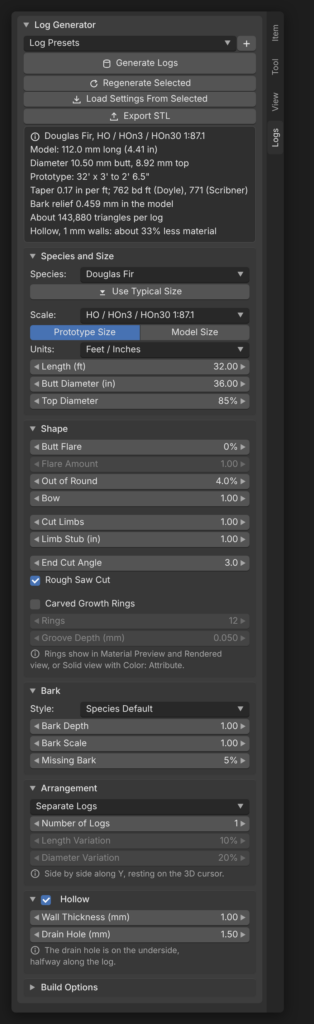
The whole Logs tab: the main panel at the top, then Species and Size, Shape, Bark, Arrangement, Hollow and Build Options.
The panel is laid out top to bottom in the order you’ll usually work. Below, I’ll walk through each section. The numbers in each screenshot match the numbered fields in the text, and the most important settings get a “Key setting” note.
1. Log Generator (the Main Panel)
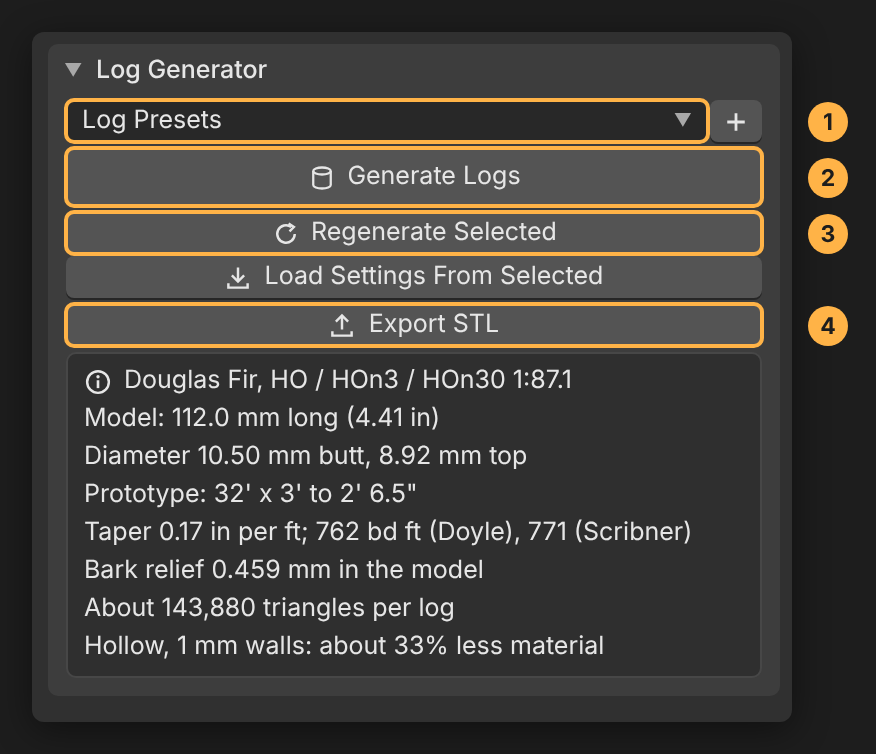
Presets, the action buttons, and the live summary box.
This is the control centre. The buttons at the top do the work, and the summary box underneath updates as you change any setting, so you can check sizes before you generate anything.
- Log Presets: Save the whole setup (every setting) under a name and recall it later. The + button saves the current settings.
- Generate Logs: Builds new logs at the 3D cursor. Each press uses a new random seed unless you lock it.
- Regenerate Selected: Rebuilds the selected logs with the current settings, keeping their name, position and collection. Load Settings From Selected (just below it) copies the settings stored in a log you made back into the panel, so you can tweak and regenerate it.
- Export STL: Writes the selected logs to STL in millimetres. Select a group’s empty to export all of its logs. One File per Log is on by default.
Key setting: Read the summary box before you print. It shows the model length and diameter, the prototype size, taper in inches per foot, board feet (Doyle and Scribner log rules), how deep the bark relief is in the model, triangles per log, and how much material hollowing saves. If something won’t print, such as bark too fine to show or walls too thin to hollow, a red warning appears here.
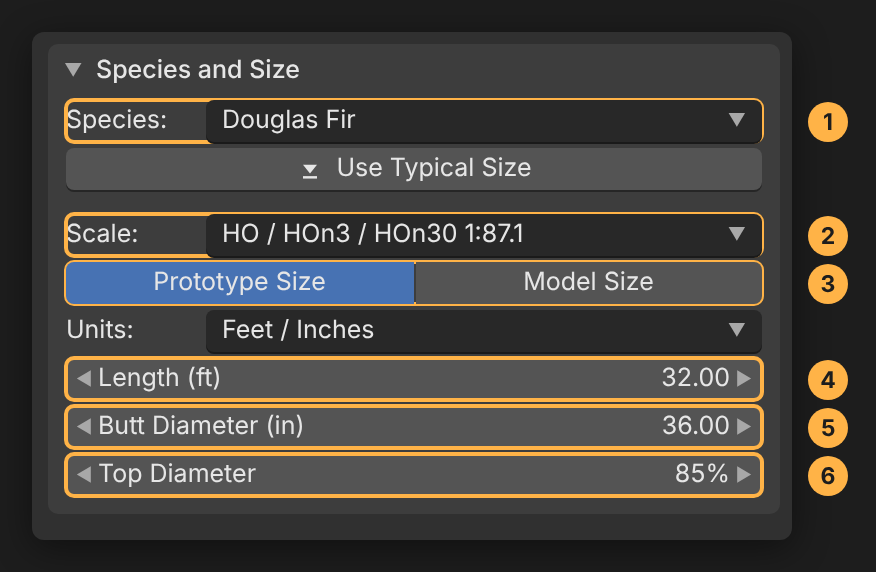
2. Species and Size
Species and Size: what the log is, and how big.
This section decides what the log is and how big it will be. Start here every time.
- Species: Sets the bark style, wood colours, typical flare, limbs, bow and how high the log floats. Use Typical Size, just below it, fills in a typical steam-era log for that species.
- Scale: The model railroad scale. It converts the prototype size to the model and also sets the size of the bark detail.
- Prototype Size / Model Size: Enter the real log’s size and let the scale shrink it, or enter the model log’s size in mm or inches.
- Length: Log length in feet or metres (prototype), or mm or inches (model). Default 32 ft.
- Butt Diameter: Diameter at the big end, outside the bark, not counting flare. Default 36 in.
- Top Diameter: Small end as a percentage of the butt, which controls the taper. 85% is a typical log.
Key setting: Size By. If you’re matching a prototype photo, use Prototype Size. If you need a log to fit a specific car or casting, switch to Model Size and type in the millimetres. The scale still controls the bark, so the texture stays believable either way.
3. Shape
Shape: flare, roundness, bend, limbs and the sawn ends.
Shape settings make a log look like it came from a real tree rather than a lathe. Most are multipliers of the species’ typical value, so 1.00 is a natural starting point.
- Butt Flare: The chance that a log is a butt log from the base of the tree, where it widens into the roots. 0% = none, 100% = every log. Flare Amount sets how much it widens. Out of Round and Bow (just below) set how oval the log is and how much it bends along its length.
- Cut Limbs: How many sawn-off limbs, as a multiple of the species’ typical number. Each stub has a raised bark collar and end grain. Limb Stub sets their length.
- End Cut Angle: How far each sawn end can be off square, in degrees. Rough Saw Cut gives the cut faces a slightly uneven surface.
- Carved Growth Rings: Cuts the growth rings into the ends as shallow grooves, like weathered end grain, so they show on a print and catch a drybrush. Rings sets how many.
- Groove Depth: How deep the carved rings are. About 0.03 mm shows on resin; FDM needs about 0.1 mm.
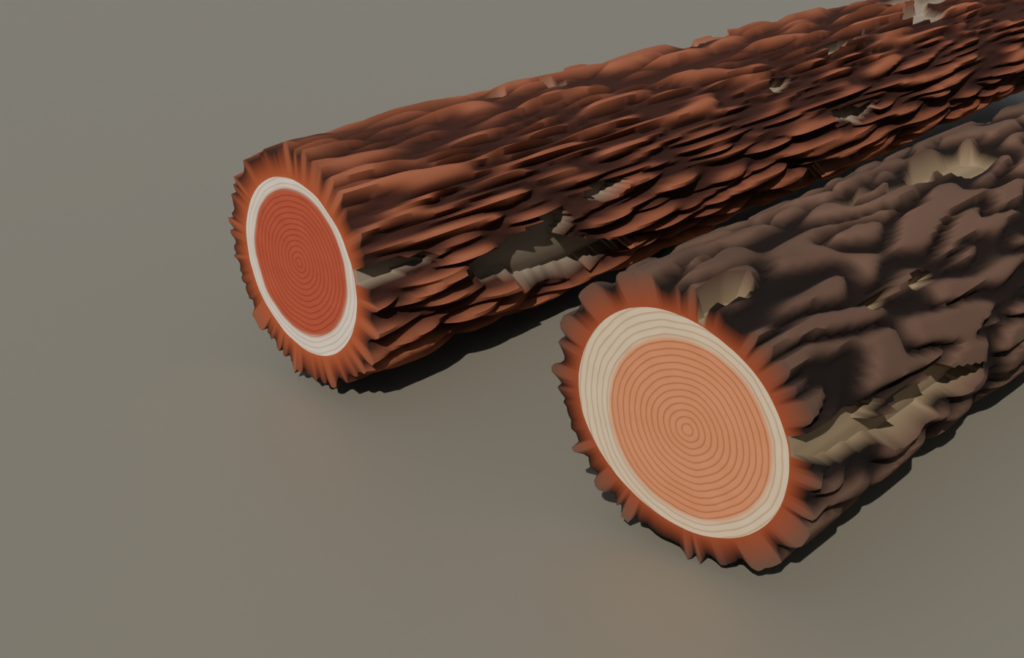
Carved Growth Rings turn the end grain into real geometry that prints and takes a drybrush.
Key setting: Carved Growth Rings and Groove Depth. If you print, turn this on. Painted rings disappear at model scale, but carved rings catch a drybrush and look great on the ends of a load. Match the groove depth to your printer.
4. Bark
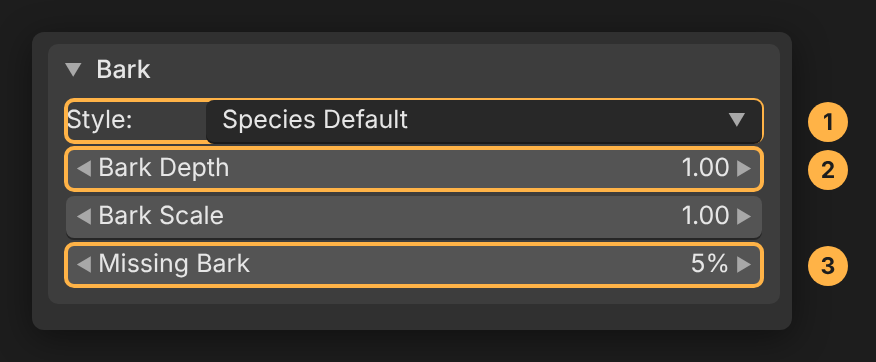
Bark: pattern, depth, feature size and damage.
- Style: Species Default uses the species’ own bark, or you can pick any other bark style.
- Bark Depth: Depth of the furrows, as a multiple of the species’ typical depth. Deeper bark reads better on prints. Bark Scale (just below) sets the size of the ridges or plates.
- Missing Bark: Share of the bark knocked off in handling, showing bare wood underneath. Default 5%.
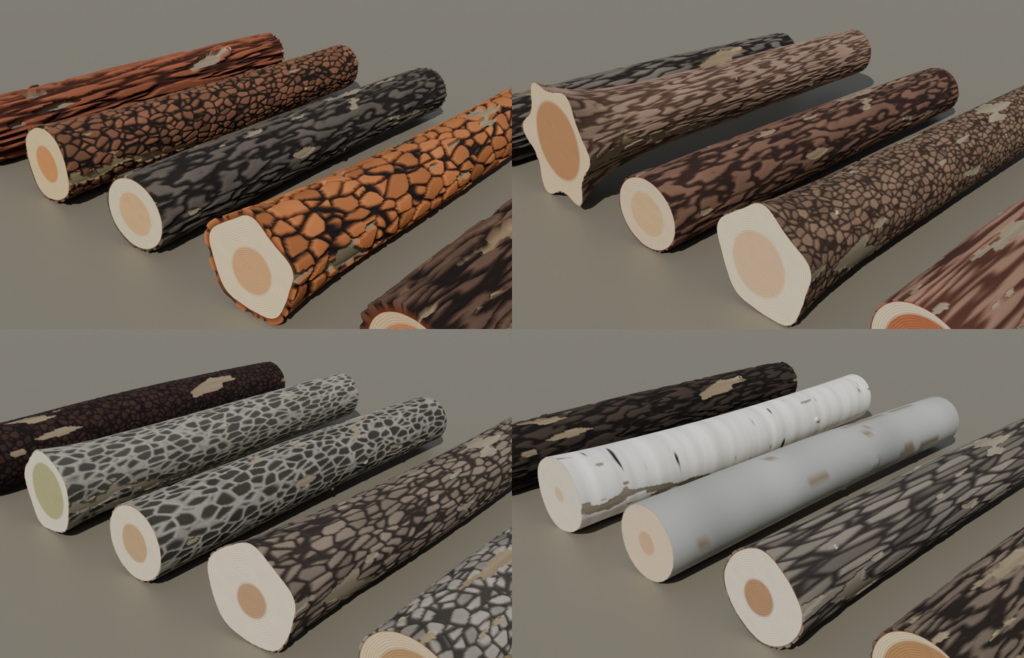
At small scales, real bark is finer than a printer (or a mesh) can show. The generator handles this by enlarging the bark features slightly, just enough that it still reads as that species’ bark rather than noise. The summary box tells you the bark relief in model millimetres.
[IMAGE: log-generator-species.png | Caption: A sampling of the 20 species: plated pine, furrowed fir and oak, smooth beech and white paper birch.]
5. Arrangement
Arrangement decides what you get when you press Generate: separate logs, a car load or floating half logs. The settings below the menu change depending on which one you pick.
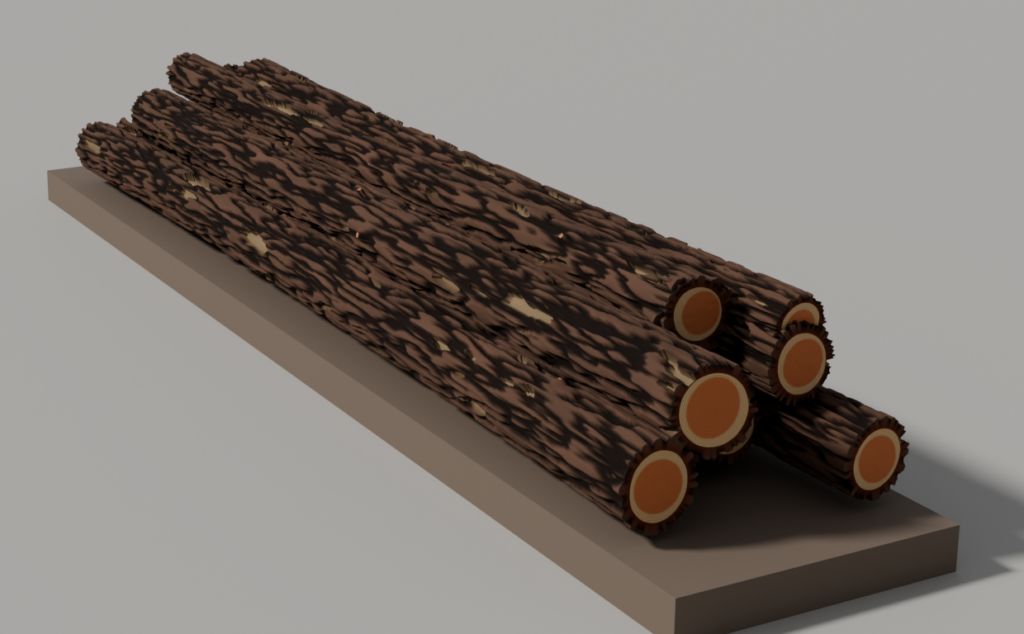
Arrangement set to Car Load.
- Arrangement: Separate Logs (side by side), Car Load (a stacked pyramid) or Floating Half Logs.
- Number of Logs: How many logs to make. With more than one, each varies by up to Length Variation and Diameter Variation.
- Car Width: Width of the load across the car or deck, either at real size (Prototype) or as the model car’s width (Model).
- Max Rows: The most rows in the stack. The summary shows how many logs of this size fit on the car. End Stagger and Alternate Butts slide the logs so the ends don’t line up and turn every other log end for end, as loaders did.
- Join for Printing: Unions the whole load into one solid for printing; logs sink into each other by the Overlap amount. Turn it off and each log is its own object.
Key setting: Car Load and Car Width. Set the car width and the generator packs the logs across it, longest on the bottom, with each upper log resting in the groove between two below. Turn on Join for Printing if you want the load as a single printable piece.
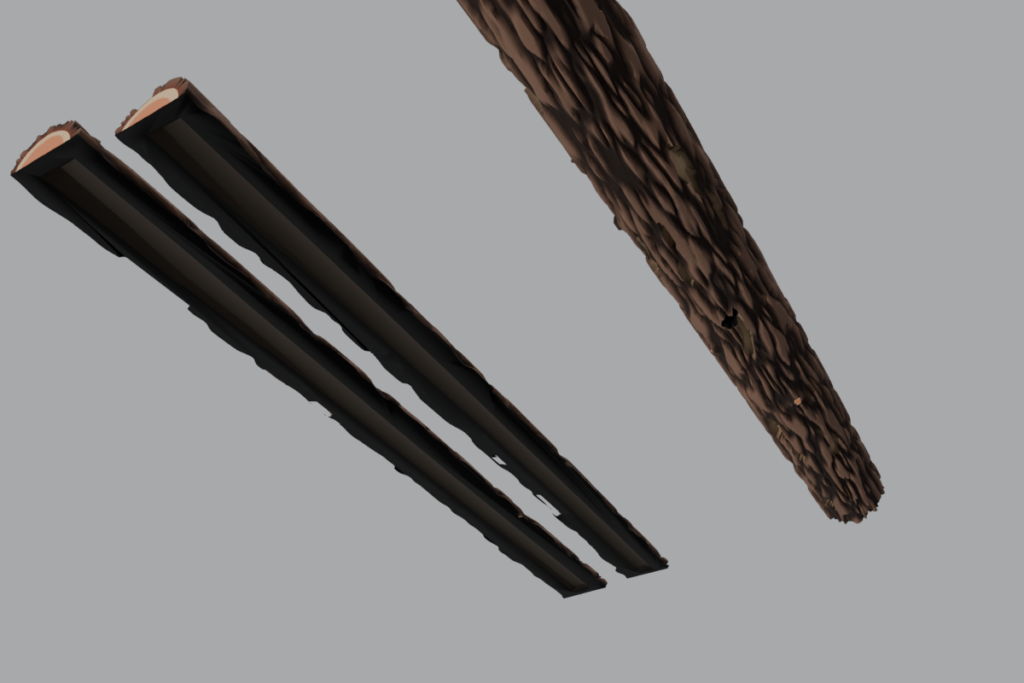
Arrangement set to Floating Half Logs.
Floating Half Logs cuts each log flat at its waterline, so the flat face sits on the 3D cursor, ready to glue onto a flat surface painted as water. The Waterline can follow the species (light cedar rides high, while green oak barely floats), be cut through the middle (Half Log), or be a Custom percentage of the diameter above the water.
6. Hollow
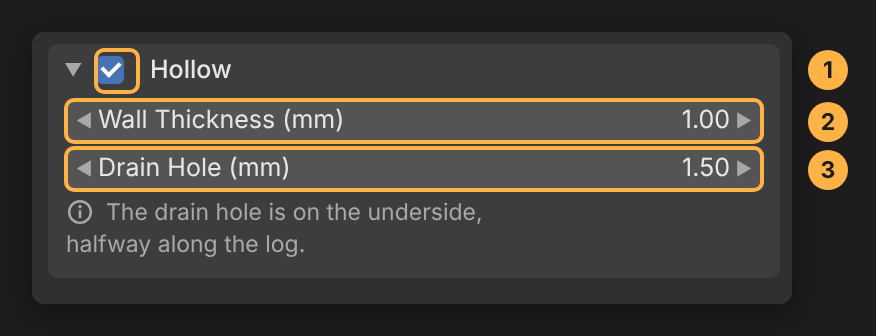
Hollow: wall thickness and drain hole.
- Hollow (checkbox): Leaves the inside of each log empty. On by default.
- Wall Thickness: The thinnest wood and bark allowed anywhere, including under the deepest bark furrow and behind the sawn ends. Default 1 mm.
- Drain Hole: A hole from the underside into the hollow, halfway along, so resin can drain out. Default 1.5 mm; 0 for none. In a car load every hole faces down.
[IMAGE: log-generator-hollow-underside.png | Caption: Hollow half logs are open underneath; full logs get a small drain hole.]
Key setting: Wall Thickness. Hollowing typically saves about a third of the material on an HO log. Logs too thin for the wall you set are printed solid automatically, and the summary box tells you when that happens.
7. Build Options
This section starts closed, because you’ll rarely need it. It’s worth knowing about, though:
- Detail: Coarse (0.4 mm) for quick previews and big loads, Medium (0.15 mm) for renders and FDM, Fine (0.08 mm) for resin.
- Max Triangles per Log: A safety cap so big logs at large scales don’t produce enormous files. Default 400,000.
- Seed (and lock): The number that picks the random bark, limbs and variation. Generate shows the seed it used; click the padlock to reuse it and repeat logs you liked. The arrow button picks a new seed.
Key setting: Lock the seed before you Regenerate. When you like a log but want to change one setting, use Load Settings From Selected, lock the seed, adjust the setting, then Regenerate Selected. You keep the same log, with just that change applied.
Sample Logs
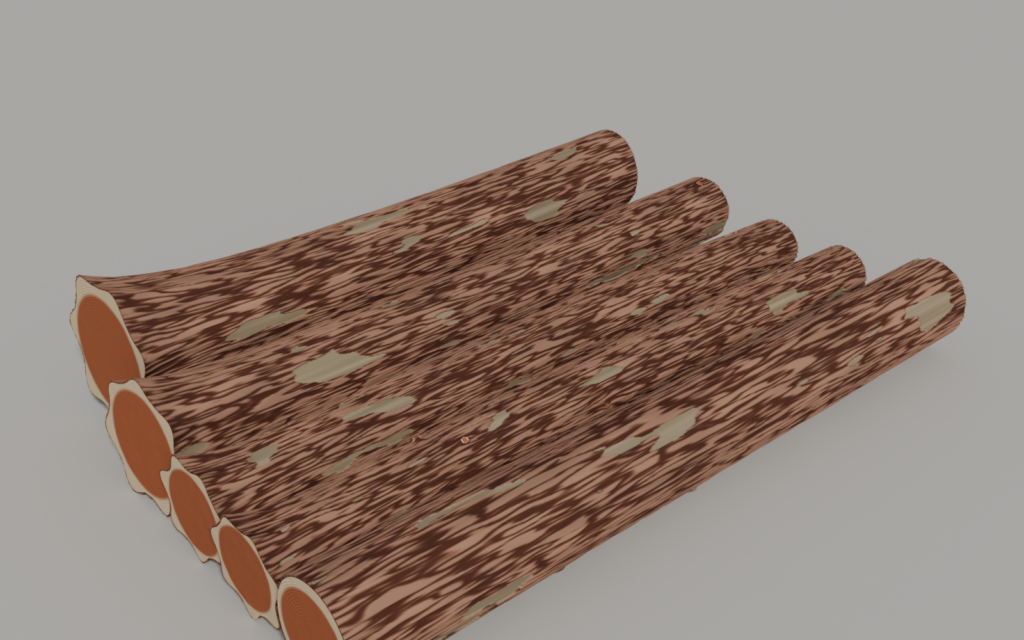
Separate Logs: five O scale western red cedar logs with a 60% chance of butt flare. Each one is different.
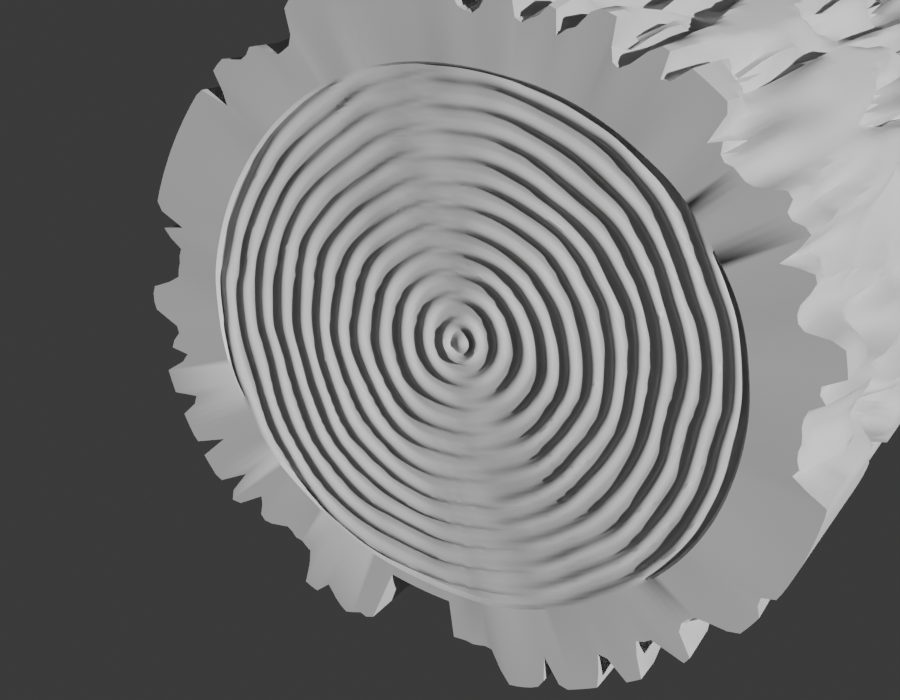
End grain: heartwood, a pale band of sapwood and growth rings on every sawn end.
A Quick Recipe: An HO Log Car Load
- Species and Size: Douglas Fir, scale HO, Prototype Size, 34 ft long, 24 in butt.
- Shape: Butt Flare 25%, and turn on Carved Growth Rings if you’re printing.
- Arrangement: Car Load, 10 logs, Car Width 9 ft. Check the summary box to see how many logs the car holds.
- Hollow: Leave it on, with 1 mm walls.
- Generate Logs, then select the load’s empty and Export STL.
Tip: Seeing the Growth Rings in Blender
Blender’s Solid view shows each material as one flat colour, so the rings won’t show there. Switch the viewport to Material Preview or Rendered (Z key), or in Solid view set Viewport Shading > Color to Attribute. The ring colours are also baked into the mesh colours, and they show especially well when the rings are carved.
And Finally…
If you need to 3d print logs, then Log Generator is for you. It turns an evening of sculpting into a few clicks, and every log comes out a little different. Set up your species and scale once, save it as a preset, and you can fill a whole log train or mill pond in an afternoon of printing. I’d love to see what you build with it.