This post will walk through the steps needed to configure the RPi Pico to use the RPI-APP-FRAMEWORK. This framework provides base classes for creating applications on the Raspberry Pi. A few assumptions, I use Windows to run Thonny (python IDE) and I connect the Pico to the laptop via a USB cable. Thonny provides a nice facility that connects to the Pico and allows you to edit and run python code on the Pico.
Install RPI-APP-FRAMEWORK On Your Local Machine
You should create and activate a python virtual environment first. Then do a pip install…
pip install rpi-app-framework
Install RPI-APP-FRAMEWORK On The Pico
The RPi Pico runs micropython which does not support the PIP utility. Therefore, you have to manually copy the framework files from your laptop/desktop that has the framework installed. I’m assuming you’ve created a virtual environment on your windows machine and performed a pip install rpi-app-framework.
Start Thonny. A file navigator should appear in the upper left hand corner. If not then do a View / Files.
Plug the Pico into your laptop USB port. Make sure you’re using a data capable USB connector.
Do a Run / Configure Interpreter
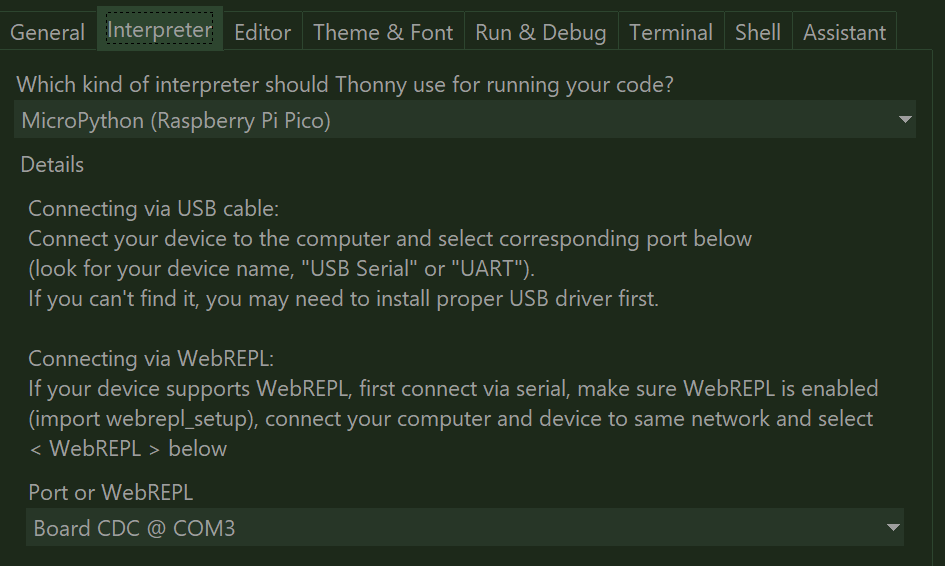
Select the MicroPython (Raspberry Pi Pico) option. You should see the Board CDC @ COM3 (or COM4). Click OK and Thonny should connect to the RPi Pico. You should now see the Rpi Pico file system on the lower left hand corner.
Right click on the Pico root and select New Directory. Name the new directory “lib”. MicroPython automatically adds /lib to the import search path, so any package placed there works exactly like a normal Python package without extra code.
Now look at the file navigator in the top left. Navigate to where you have the RPI-APP-FRAMEWORK installed. Right-click the local src/rpi_app_framework/ folder (the one that contains __init__.py, rpi_app.py, …) and then do Upload to /lib. Thonny will copy the entire folder to the lib directory on the Pico.
Install MicroDot
MicroDot is the python web server that is used in the rpi-app-framework. This is optional, if you don’t plan on using this you don’t need to install it.
You have to get the microdot file directly from the github repository. You can’t use the micropython files associated with a “pip install” as they are written for CPython and use libraries not available on micropython. Open the src/microdot folder on github to locate the needed file.
Now “Upload” the following file to the Pico root directory. Right click on this file and select the Upload option.
- microdot.py
Finally…
That’s it. This post demonstrated the steps needed to configure the RPi Pico to use the RPI-APP-FRAMEWORK. You should now have the files needed to use the rpi-app-framework installed on your Pico. The next step is to create a main.py file that creates and runs an rpi-app-framework application.